01 / OPERATOR WORKFLOW
Define the period and scope
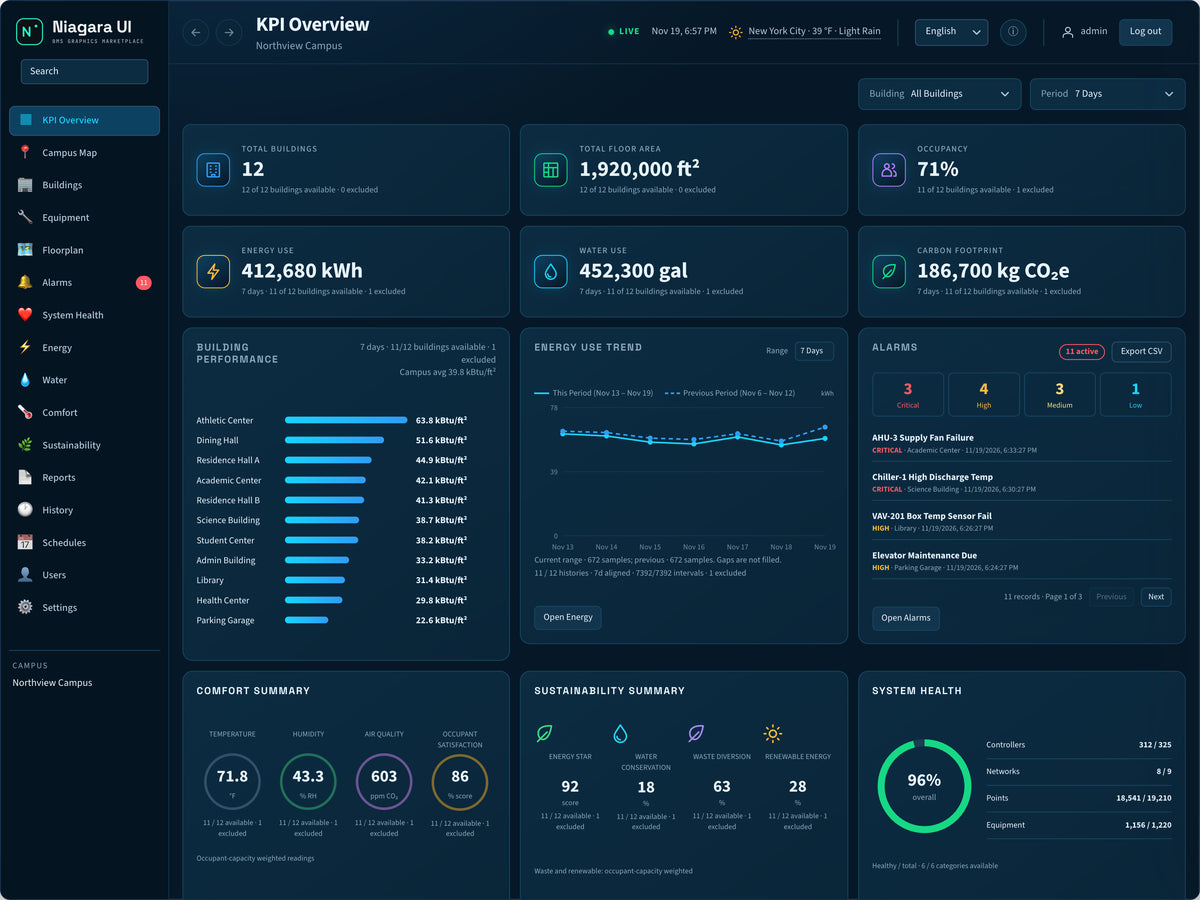
Begin at KPI Overview. Confirm the selected campus, building scope and seven-day period. Read available/excluded source counts before comparing totals or normalized indicators.
NIAGARAUI / CAMPUSES & PORTFOLIOS
Campus totals are useful only when the operator understands the buildings, reporting period and source coverage behind them. PULSE connects portfolio indicators with building-level views and recorded resources, helping teams move from a broad question to a defined investigation.
APPLICATION SCENARIO / PULSE
Consider a campus with twelve registered buildings. A seven-day energy total of 412,680 kWh and water total of 452,300 gallons include eleven of those buildings, with one excluded. The comparison starts by separating the estate size from the actual source coverage and keeping the reporting period consistent.
Scenario snapshot. Figures describe the scenario setup. Live readings and available actions depend on the project's configured sources.

01 / OPERATOR WORKFLOW
Begin at KPI Overview. Confirm the selected campus, building scope and seven-day period. Read available/excluded source counts before comparing totals or normalized indicators.
02 / OPERATOR WORKFLOW
Use Buildings and Campus Map to choose the building that merits investigation. Check the inputs behind floor area, occupancy and resource indicators; do not treat a partial portfolio total as a full-estate result.
03 / OPERATOR WORKFLOW
Open Energy or Water for the selected scope. Compare aligned recorded intervals and keep gaps visible. A building with no usable history should not appear to have zero consumption.
04 / OPERATOR WORKFLOW
Use the configured Reports and History resources to retain the scope, period, available sources and observations. Add the relevant alarm, comfort or schedule context for the next operator review.
A campus review can identify which buildings and recorded sources support the comparison, making the next investigation reproducible and the coverage limitations explicit.
Dedicated Reports and History pages sit alongside Energy, Water, Comfort and Sustainability views. The project must supply the relevant sources, report resources and permissions; displayed sustainability scores are not independently certified outcomes.